
How To Check Your Title Tag And Meta Description Before You Publish
5 min read
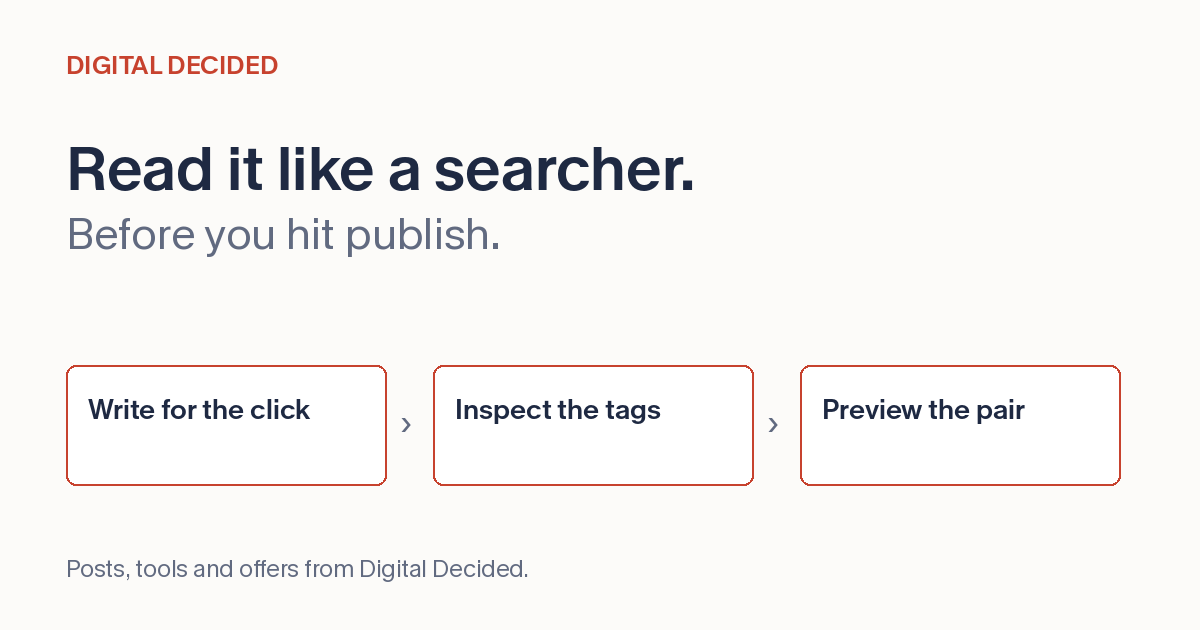
Your page is ready, but the title still says "Home" and the description could belong to any business. Before you send someone a link, check what the page says about itself. A clear title and description help a visitor decide whether they are in the right place; a preview gives you a quick way to read them together.
You can do this check without an SEO platform. Start with the page's purpose, inspect the tags it serves, then review the wording in a search and social layout. The preview is an editing aid, not a promise of exactly what a search engine or social network will show.
Write For The Person Choosing The Page
Finish this sentence before editing the tags: "This page helps you ___ so you can ___." Use the answer to decide what belongs in the title and description.
For a guide to checking XML sitemaps, the job might be finding errors before submission. "How To Check An XML Sitemap For Errors" tells a reader what they can finish. "Our Complete SEO Resource" does not.
The description can add information the title leaves out: "Find malformed XML, duplicate URLs and pages that do not belong in your sitemap; check the results before you submit it." That is an illustrative example, not a description to paste onto an unrelated page.
Put the useful detail early. Remove repeated brand names, filler and promises the page cannot deliver. If the title says "checklist," the reader should find a checklist. If the description promises a worked example, the example should be there.
Inspect What The Page Serves
Open the intended page and use your browser's View Page Source command. Search for the title element and the meta description. Check that the values are specific to this page rather than defaults left in a template.
If your website builds tags with JavaScript, inspect the rendered page too. The original response and rendered HTML can differ. A preview of text you typed does not prove that the live page contains that text.
Check the visible heading and opening paragraph alongside the tags. They can use different wording, but they should describe the same subject. Google can draw title links from several sources, including page headings; inconsistent wording gives it competing descriptions of the page.
For an existing public URL, Search Console's URL Inspection tool can help you inspect what Google can retrieve. That is a different check from proofreading your draft. A good preview is not evidence of crawling or indexing.
Compare The Title And Description Together
Read the pair as if you know nothing about the business. Can you tell what the page covers? Does the description add detail rather than repeat the title? Is the result useful enough to choose without relying on an exaggerated claim?
Try a narrow layout as well as a wide one. The important subject should survive if the display cuts off the ending. Keep a clear title even when a longer version contains more keywords; a keyword list is harder to read than a description of one useful page.
There is no fixed Google character limit for title elements or meta descriptions. Displayed title links and snippets can be truncated to fit the device width. Character counts can help you notice a long draft, but a number is not a guarantee that every word will appear.
Google may generate a different title link. Snippets are primarily drawn from page content, and Google may use the meta description when it provides a better summary. Do not label a mock preview as an exact future search result.
Check The Shared-Link Version Separately
A page can look clear in search and confusing in a shared link. Review the social title, description and image as a separate set. The image should reinforce the page's subject, not advertise something unrelated.
Open Graph title and description tags let a page describe itself for sharing, but different platforms can display or cache information differently. Reusing the search wording can be a sensible starting point; it is not a substitute for checking the intended platform.
If the page was already shared, a changed preview may not appear immediately everywhere. First verify the live tags. Do not keep changing correct copy to fix a cached card without checking the platform's own preview or refresh process.
Finish With A Page-Level Check
Before publishing, confirm that the destination opens, the visible heading matches the tags, the description is unique to the page and every promise is supported by the content. Test the page on a phone as well as a desktop. A readable preview cannot fix an inaccessible or empty destination.
Keep the title, description and date of your check together so later edits have a reference. If a search result changes, compare it with the query and the current page before deciding that the tags are wrong.
The Meta Tag Preview on DigitalDecided takes three inputs: the page URL, the title tag and the meta description. It renders the wording in a search-result layout and a shared-link layout from the same values, so what you type is what both previews show. The shared-link image area is a placeholder; the tool does not fetch an og:image from your page or store one you upload.
Two scope notes keep the check honest. The tool reads only what you paste; it does not fetch the tags from the URL you enter, so a mismatch between your draft and the live page is yours to catch by inspecting the page itself. And it shows one layout of each kind, not a desktop/mobile switch, so treat it as a wording check and check real rendering on your own devices.
Use it as the final wording check before you publish: read the title and description together, confirm they describe this page, then verify the tags on the live page match what you previewed.